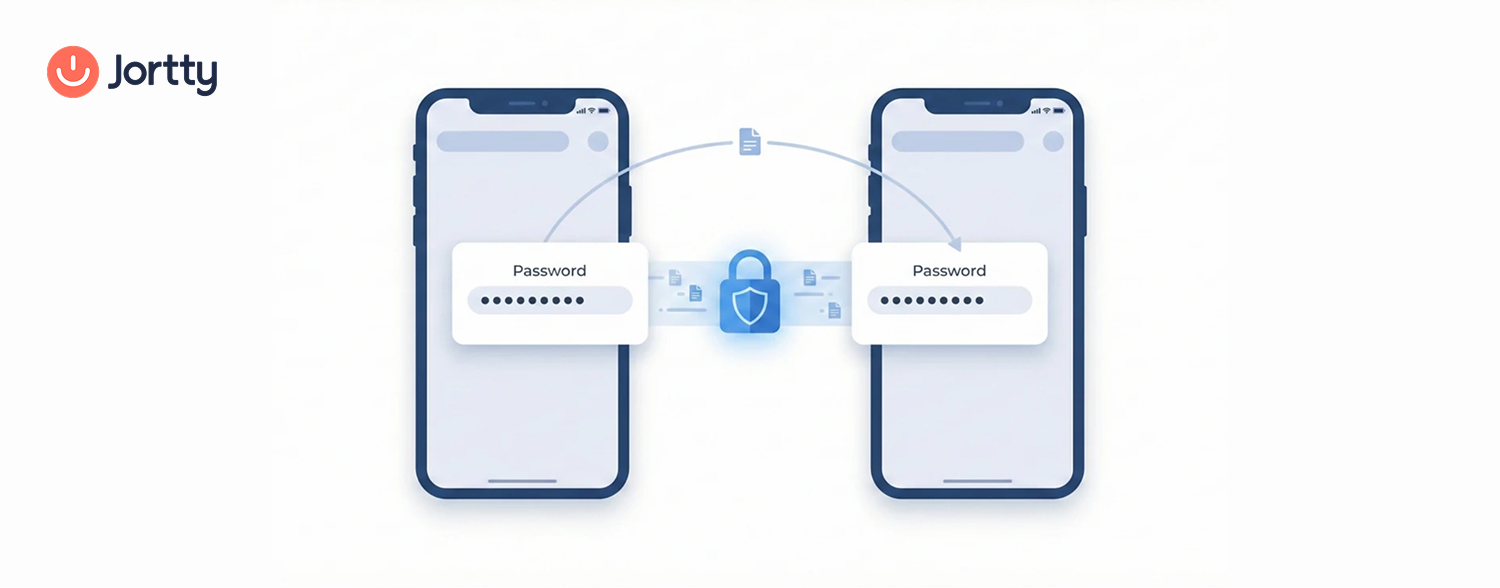
You might have shared passwords with your family, friends, and even coworkers, or maybe it is your kids who need access to your streaming services or even your co-workers who need access to the shared online resources. You might need proper security with the help of text or email to do these. However, the good news is here. Apple with iOS 17 offers you new and more secure end-to-end encrypted modes of sharing passwords using iCloud Passwords & Keychain.
The entire process of setting up online security with password sharing is seamless. You can create groups of reliable contacts and then pick the passwords you like to share with your group. The others in a group can share their passwords with you, too. Each member of the group has the shared passwords added under their Keychain to log in to the app or the site.
The iOS 17 feature comes with secure password sharing, which needs all you are sharing with iOS 17 devices, as you can find a list of upgradable devices online. One of the major limitations of the new password-sharing feature is that each of the passwords gets shared with one group of individuals. So, if you want to share the login details of your Hulu account with your mother-in-law or family, then you need to add your mother-in-law to the group, which will give her access to every other shared family password, too.
Create a Shared Group for Password Sharing
Password sharing for iCloud Keychain was added to iOS 17 and iPadOS 17, along with macOS 14.0 Sonoma. It was at the time of writing that the releases were under the public beta that got released. To use this feature, the devices have to operate with compatible software. The feature is often baked into Apple’s password manager using a shared group system like iCloud Shared Photo Library. Always create a group of individuals with whom you would wish to share the passwords while moving them into the groups for internet safety. You will then become part of multiple groups at a time.
- Click on “Settings” and then “Passwords,” where you will find the option to “Get Started” sharing passwords.
- Hit the plus or “+” button at the top corner of the screen and select “New Shared Group” from the other options.
- You will be notified that both the passwords and the passkey are shared, that every member contributes passwords to the group, and that the group owner decides who joins the sharing group. Then click on “Continue” to get started.
- Name your group and tap on the “Add People” button to invite the contacts. For the invitation to be sent, anyone you add needs to run iOS 17, iPad 17, or macOS Sonoma on their compatible devices. Whenever you are ready, tap on “Create” to create the group.
- You will then be prompted to move passwords to your group. Click on “Not Now” to delay this, or opt for a couple of passwords that you would like to share.
Move Passwords to Your Shared Group
- On your compatible devices, click on “Settings” and then “Passwords.” You will see the group you created and a group named “My Passwords,” complete with the number of passwords shared in each. Select the group and use the “Manage” button to rename or delete it.
- Under the shared password group, you can use the plus or “+” button at the top of the menu to select between creating a “New Password” or “Move Passwords to Group” for sharing the existing credentials. You can also use “Add People” here to invite others.
- You also have the scope to move passwords one by one by clicking on them and using the “Group” menu to move a password to the shared group or back to the personal “My Passwords” group.
Be Selective About Sharing Passwords and Passkeys
Being able to share passwords more safely indicates that you are not sharing your login details through the messaging platforms, and it makes it easier to use the autofill features in apps such as Safari or concierge for logging in as cybersecurity best practices. You have to tread carefully on whom you decide to share the password with and whatever you are sharing. If you no longer wish to share the password of your account to the group then you can delete it and change the password as a whole. You can even remove them if you no longer want any person to be part of the group created by you.